


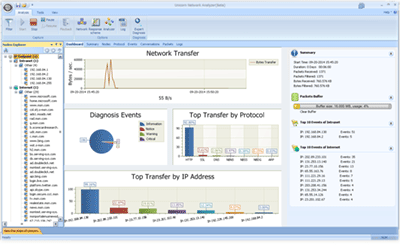
In the previous issue, we discussed the techniques for conducting structured searches using the Wireshark tool. In this issue, we will introduce how we can use the Allegro Network Multimeter to accelerate the work of the pcap analyzer.
Previous review:
Having already introduced important techniques on how to create large pcap files for better handling, this second part will explain how the Allegro Network Multimeter handles this task.
The Allegro Network Multimeter is not a complete replacement for Wireshark. However, it is designed to pre-filter pcap files for more in-depth packet analysis with Wireshark.
The Allegro Network Multimeter measures traffic and displays all metadata in real-time; this applies to both real-time data and historical network traffic. What is special about this tool is the speed at which it processes data. This is advantageous for users needing pcap analysis.
Basically, the Allegro Network Multimeter offers two different functionalities. On one hand, it can individually and clearly filter traffic when creating a pcap; on the other hand, existing pcap files can be uploaded to the device for pre-selection for analysis with Wireshark.
Firstly, the discussion here is about its functionality as a pre-filter. Through the Allegro Network Multimeter, due to its extensive filtering capabilities and data association, one can easily and quickly navigate to the location of the traffic. There, a pcap can be saved directly from the selected network traffic suspected of errors. Then, this greatly reduced pcap file can be used for quick analysis in Wireshark.
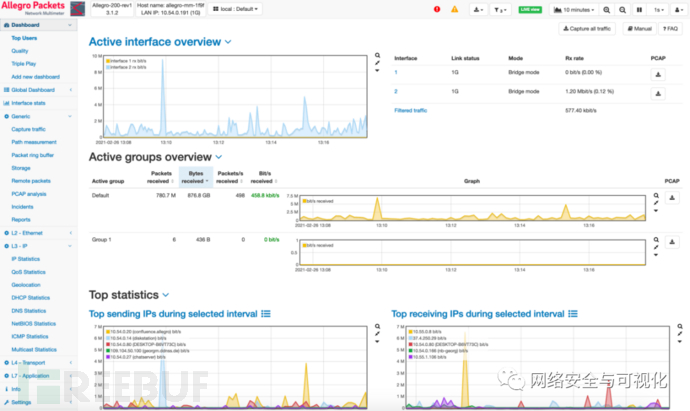
Navigate from the Allegro Network Multimeter dashboard to suspected faults
This capture feature is integrated into all analysis modules of the Allegro Network Multimeter. Starting from the dashboard, you can get a first overview of the most important parameters of the current network traffic. You can navigate through different levels using timelines and charts, getting closer to the issue. In most parts of the user interface, there’s a pcap download button through which you can easily capture the displayed and selected network traffic as a browser download, whether you want to download a pcap from MAC statistics or from the HTTP protocol, for instance:
If you want to resolve an issue, for example, why VoIP calls were so unstable last Wednesday, simply navigate to the SIP module, set the desired time range, and sort the calls within this timeframe by jitter, or directly filter by phone number. The problematic calls can now be downloaded as pcap for further packet analysis with Wireshark.
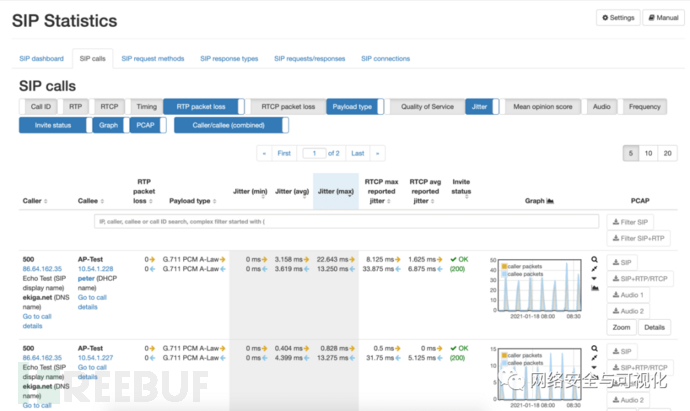
Not only can you pre-select traffic at will, but due to the presence of the Allegro Network Multimeter, the time for troubleshooting can be greatly reduced, and the time to create a pcap is cut down to a small fraction.
Furthermore, beyond basic administrator knowledge, no further specialized knowledge is required to operate the device. Most filters are predefined and merely need to be selected. Moreover, operators can combine them with each other on the command line.
The second functionality provided by the Allegro Network Multimeter to accelerate the use of Wireshark is the pcap upload.
If pre-selection of network traffic was not possible before the capture, for example when receiving a pcap from a third party for analysis, the file can be retroactively uploaded to the Allegro Network Multimeter via USB or dragged and dropped in the browser, and you can view the data with this device.
The Allegro Network Multimeter has a very high import speed, so files can be opened quickly. The special feature here is that you can access already imported data. This significantly speeds up the analysis. Most importantly, the typically bridging wait time is eliminated. As a result, you can stay focused on the subject without the risk of being distracted during waiting times.
The reduced pcap in the Allegro Network Multimeter can be re-exported as mentioned above and further analyzed in Wireshark.
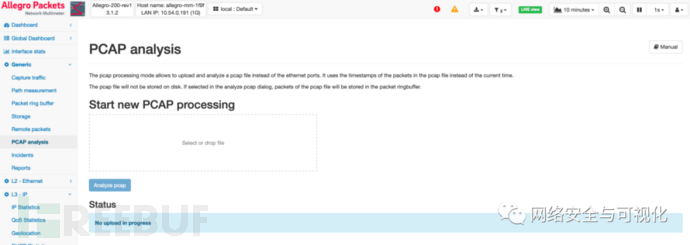
Waiting until a pcap file is opened, then determining important Wireshark data, has become a thing of the past.
The first part of the article explained several filter functionalities that Wireshark provides to reduce displayed data. Some more advanced filters may require deeper knowledge.
The second part involves the Allegro Network Multimeter developed by Allegro Packets, which offers extensive filtering capabilities controllable with just a few clicks.
Filters can be easily applied without additional syntax knowledge, making them user-friendly. Additionally, the Allegro Network Multimeter accelerates troubleshooting because errors can be quickly identified. The pcap recorded from problem areas can reduce further packet analysis time since the Allegro Network Multimeter can process and read pcap files very quickly. During reading, data can be analyzed. In most cases, detailed packet analysis using Wireshark is not necessary because the problem may already be detected and resolved by the Allegro Network Multimeter.
Original Statement: This article is authorized by the author to be published in the Tencent Cloud Developer Community and may not be reproduced without permission.
If there is infringement, please contact for removal.